
How to pass data from the Bubble UI to the API connector, and save the results
Here is how your app users can use the UI to change what request is sent to a remote API, and save the results returned from the API

Hi,
If you’ve read through some of my previous articles about APIs then you’ll now know how to use the Bubble API connector for simple cases where you want some remote data displayed for the user.
But what if the customer want’s to tweak the input on the page, and have the API request updated to suit this new context.
Easy. In this article we’ll set up a simple drop down where the customer can specify a parameter value which is sent as part of the API request
This post is brought to you by DocuPotion

DocuPotion is the PDF plugin Bubble devs love to use. It gives you total control over the design of your PDFs and makes creating beautiful PDFs easy.
Want to create simple invoices? DocuPotion can do that.
Tired of dealing with page breaks that don’t work? DocuPotion has detailed page break controls.
Already using a PDF plugin but can’t run it in the backend? DocuPotion allows you to generate PDFs in backend workflows.
Want to generate a detailed 40-page report with graphs and charts that delights your users? No problem - DocuPotion can generate large PDFs without issue
API
In this example we’ll be using the Deck of Cards api at https://deckofcardsapi.com which is easy to use, well documented, and provides nice looking images of playing cards like this one:

UI
Structure
I’ll keep the UI simple, with just enough structure to specify the input parameter, and some buttons to get, save and view cards
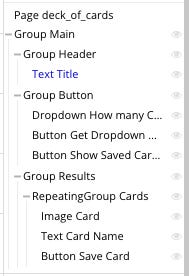

Dropdown
I want the user specified input to be the number of cards that we are querying from the API. For this I’ve added a dropdown menu with a Static list, being the numbers from 1 to 5, & a default of 3.

Note: Since I’ve enabled the ‘This input should not be empty’ checkbox, this removes the option of the number 0 in the dropdown.
Button
The Get Cards button has this configuration, and we’ll get discuss this further soon.

API
Because this API doesn’t require authentication it’s simple to get set up.
Note: I’ll be covered authenticated API’s in future articles.
Install the API Connector, and add a new API by clicking the Add Another API button.

Set up the configuration like below:
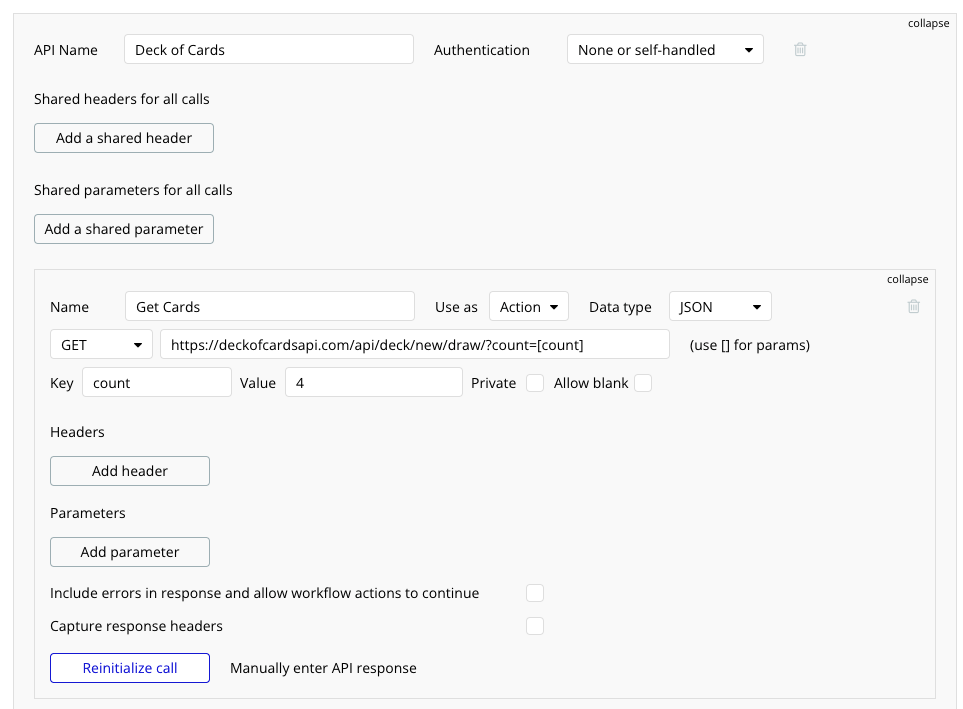
The text value above is like this
https://deckofcardsapi.com/api/deck/new/draw/?count=[count]
You’ll notice that the ‘Use as’ dropdown has Action selected, instead of Data. This means that we can reference it within a workflow as as Action.
The square brackets indicate a place where we will substitute the current value with another value, much like we’d do with a variable in programming.
Note: for clarity, let’s now change the name of the item in the square brackets to another placeholder name.. of ‘howmany’.
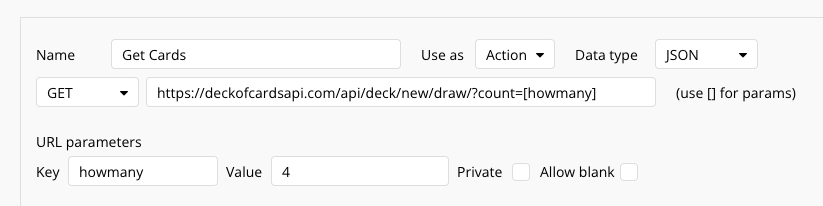
You can see that when the API is used we will be swapping the [howmany] value above, with they value we specify below in the Value field.
Think of the values in the brackets as placeholders, which we populate at run-time, based in activity in the app.
Click the Initialize call button and Bubble will test it out.
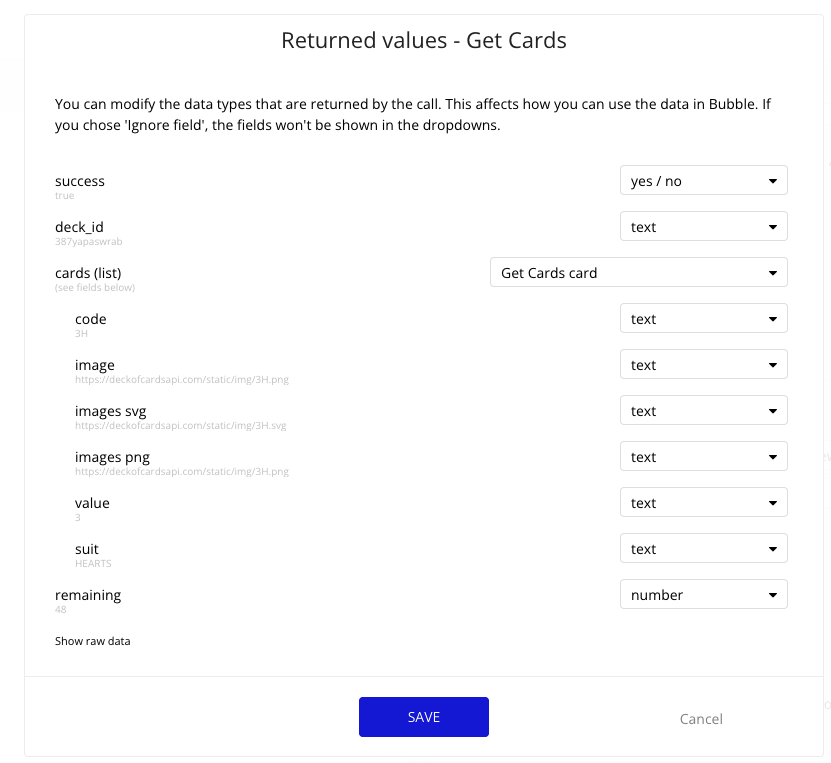
Review the data types that Bubble thinks match the returned data, make any changes you think need making and click save. You can also optionally view the raw JSON response by clicking Show raw data.
Note that the number 4 we had in the Value field was just for the purpose of have a valid number in there for when Bubble tested the API. Going forward, the actual value that is sent will instead be determined by the dropdown selected value, plus the Workflow action.
fyi, many articles are free on this site, but not all. If you want access to future and past paid articles, and the ability to comment on articles then you can sign up here.
Repeating Group
OK, we want a repeating group to display the cards we will be given by the API response.
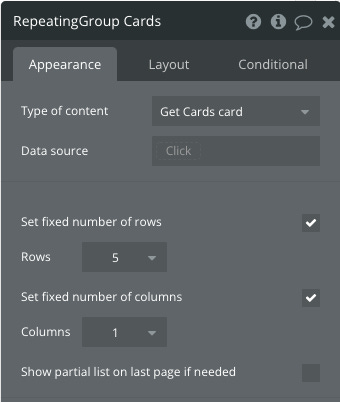
For this specify the Type of content as Get Cards card. It is named like this based on how Bubble processed the test API response, due to us calling our Get Method “Get Cards”, and the response part of the JSON which contains the list of cards, being labelled ‘cards’, with each being one card.

We won’t be specifying a Data source just yet, as that will later be pushed to the repeating group by a workflow.
Card Name
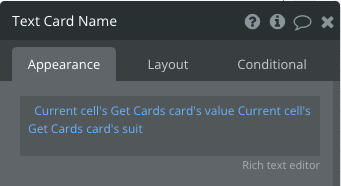
The card name and suit we will have access to from the API response, so let’s display that.
Card Image
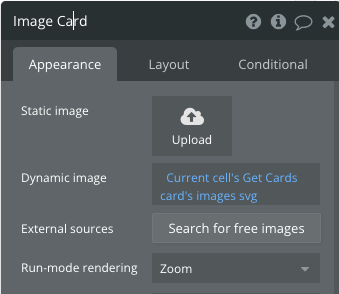
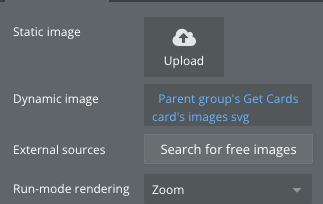
The image is provided as two options, and we’ll be using the svg

Workflows
OK, what we want is for a button to be clicked, which triggers the API call, which includes a parameter matching the requested number of items from the dropdown list.
Let’s wire up that button.
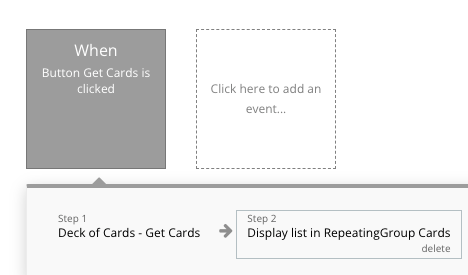
When adding an action, look under the Plugins area and you will see the new Action that is part of our API configuration
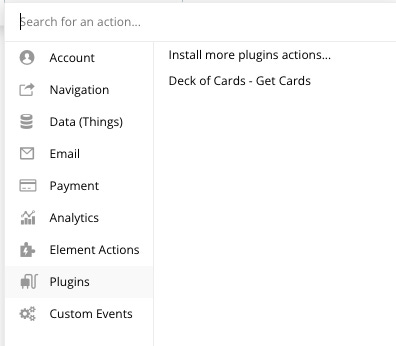
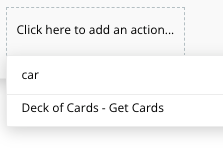
Note: alternatively, you can just start typing to find it. If you can’t find it, go back to the API config and make sure you chose Action, and not Data.
Here we specify that it is the Dropdowns value that we want populated into the ‘howmany’ section of the API url.
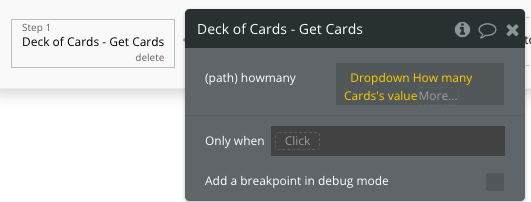
So, if the user chooses 2 cards, the API call is updated from:
https://deckofcardsapi.com/api/deck/new/draw/?count=[howmany]
to
https://deckofcardsapi.com/api/deck/new/draw/?count=2
For the Next action we choose the Display List action, to push this data into the Repeating group
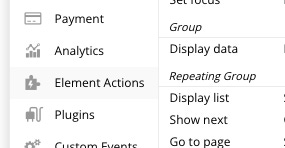
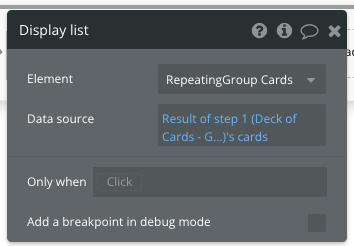
Also, for convenience, let’s also add an additional Workflow item, so that each time the dropdown selects a new number, the API call is triggered again with the new value. This isn’t necessary but will save our poor old customers a button click
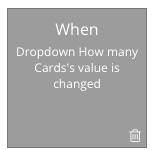
Copy the same two actions, as for the initial button click above.
Result
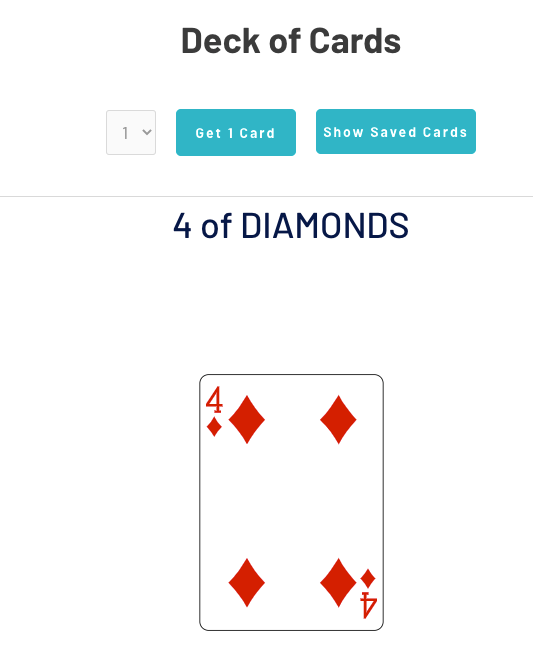
Saving the results
I had a request to show how to save the results of this API call, so here it is.
Note: For production apps, users would signup/login and be interacting with various Datatypes, and saving records in the database in a way which is persisted between sessions. For this write up, I’m just saving a record against the CurrentUser, despite them not being logged in. Data should persist briefly due to one or more of cookies and/or browser caching, but future articles will discuss these issues in more detail.
OK, let’s have a button near each card called Save Card, which allows a users favourite cards to be stored.
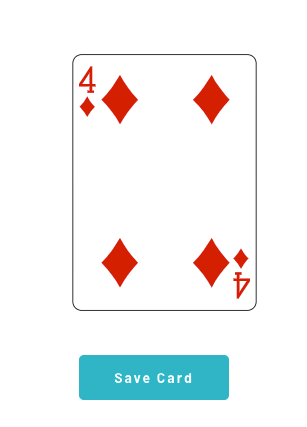
The action for this card will make an edit to the Current User record for this session of the current user, so we’ll need to first set up the User Datatype.
Go to Data | Data types | User and click Create a new field
Call it Saved Cards and specify the type as Get Cards Card, from the dropdown list, and specify that it is a list
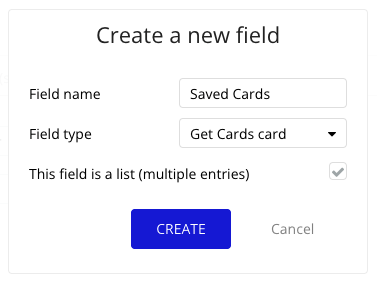
We now have a place where we can save/un-save cards, which is a unique list per user, even if multiple users are on the app at the same time.
We just need to choose a workflow action for the Save Card button
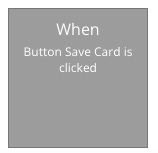
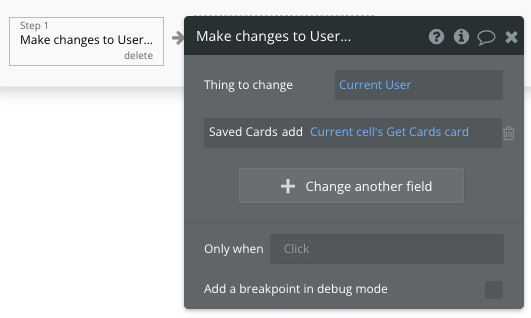
We want to ‘add’ this current card, to the list of cards, that is an attribute of the User Record.
I added a UI tweak, so that the button would change once a card was saved:
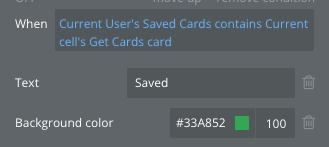
which results in this appearance for a saved card
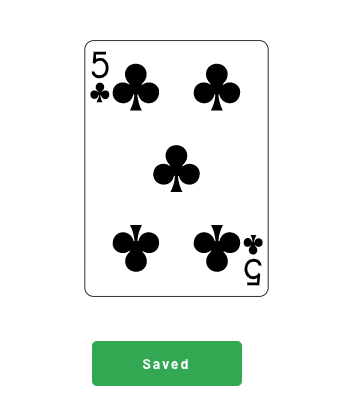
Displaying saved cards
I’d normally display this in a popup, or a hidden group, but in this example I’ve just made a new page called my_saved_cards.
On this page is a simple repeating group with this configuration
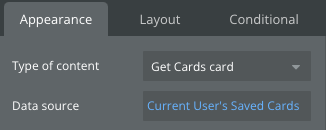
In each cell is a group
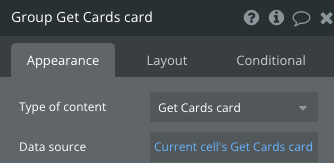
and each group displays these items
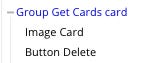
The image
and a delete button, which has this action
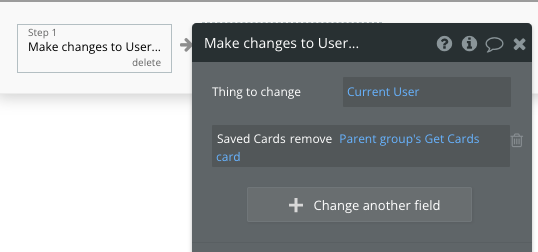
Since the list of saved cards is a list, if we want to remove one, we just call the ‘remove’ action, and pass in the current card.
The result is like this:
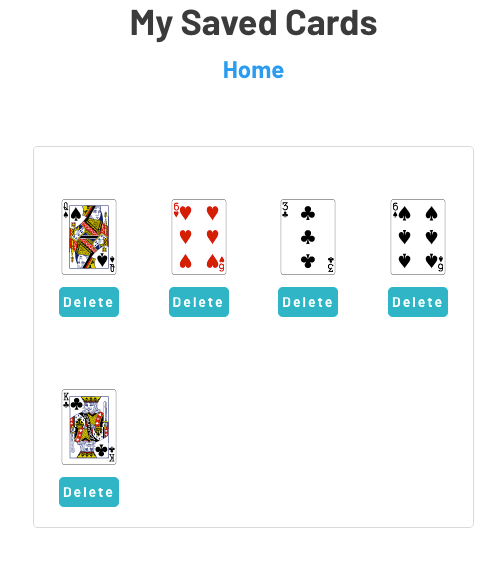
OK, that’s it folks.
If you want to try out the app, you can find it here:
https://api-samples.bubbleapps.io/version-test/deck_of_cards
I hope that will get you started on the API journey. Plenty more to come. Please let me know if you have particular API questions
For more resources about using the API Connector in Bubble, check my site FindNoCode.info.
..Marty